model Y TESLA MODEL X 2019 Repair Manual
[x] Cancel search | Manufacturer: TESLA, Model Year: 2019, Model line: MODEL X, Model: TESLA MODEL X 2019Pages: 224, PDF Size: 5.17 MB
Page 125 of 224
Using the Touchscreen
Controls
Overview
Touch Controls on the bottom corner of the touchscreen to control features and
customize Model X to suit your preferences. The Controls window appears over the map. Touch an option on the left side of the window to display the
associated controls and settings. By default, Quick Controls displays for quicker
access to commonly used settings.To close the Controls window, touch the X in the top left corner, touch Controls
again, or swipe down on the window.When an information icon displays beside a specific setting, touch it to display a
popup that provides helpful details about the associated setting.
Note: The following illustrations are for demonstration purposes only. Depending on vehicle
options, software version and market region, the options available may be different.
Controls
124Model X Owner
Page 134 of 224

Erasing Personal Data
You can erase all personal data (saved addresses, music favorites, HomeLink programming, etc.)
and restore all customized settings to their factory defaults. This is useful when transferring ownership of Model X. Touch Controls > Service > FACTORY RESET . Before erasing, Model X
verifies your credentials by prompting you to enter the user name and password associated with
your Tesla Account.
Controls
Using the Touchscreen133
Page 137 of 224
Adjusting Climate Control Settings
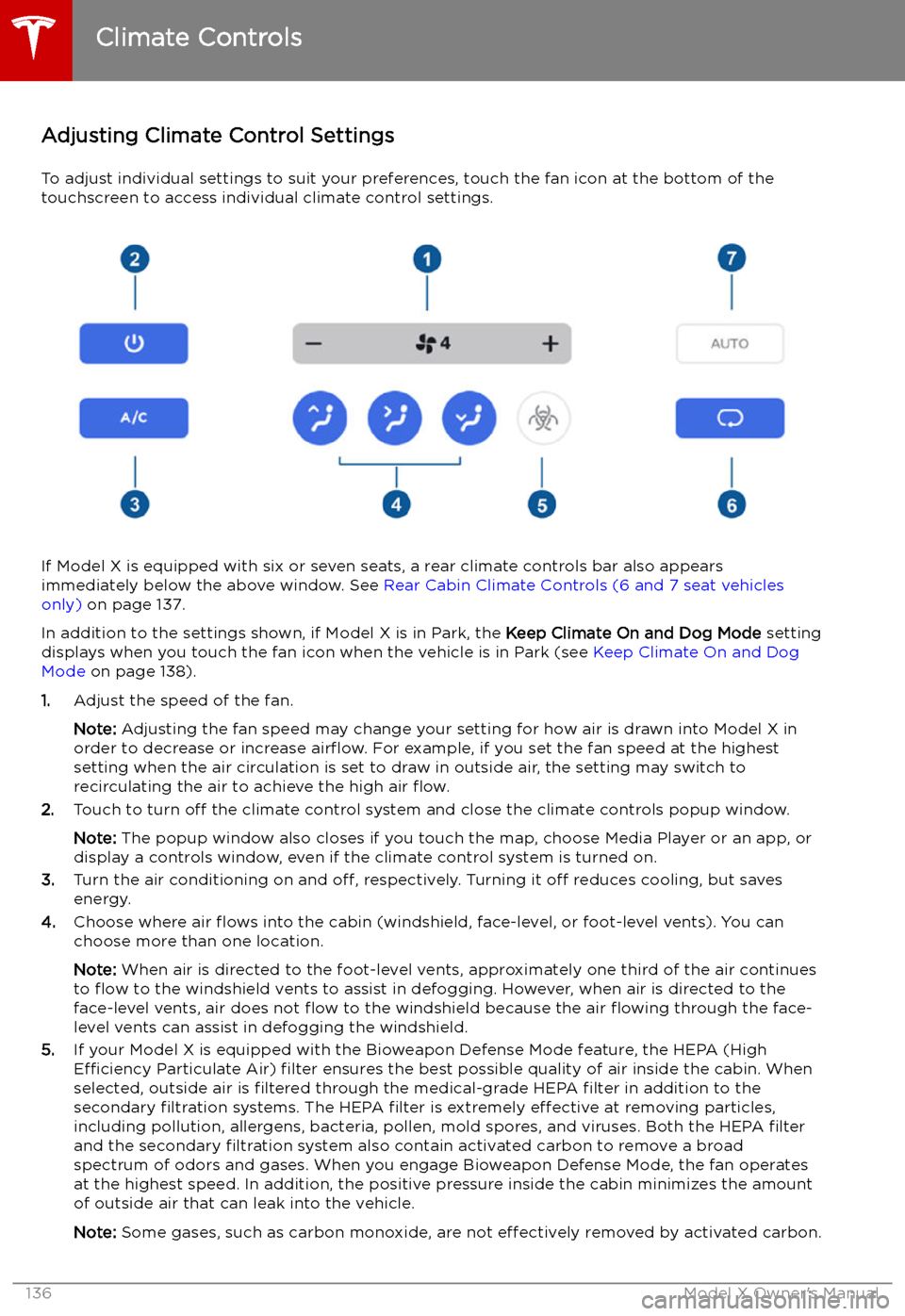
To adjust individual settings to suit your preferences, touch the fan icon at the bottom of the
touchscreen to access individual climate control settings.
If Model X is equipped with six or seven seats, a rear climate controls bar also appears
immediately below the above window. See Rear Cabin Climate Controls (6 and 7 seat vehicles
only) on page 137.
In addition to the settings shown, if Model X is in Park, the Keep Climate On and Dog Mode setting
displays when you touch the fan icon when the vehicle is in Park (see Keep Climate On and Dog
Mode on page 138).
1. Adjust the speed of the fan.
Note: Adjusting the fan speed may change your setting for how air is drawn into Model X in
order to decrease or increase air
Page 138 of 224
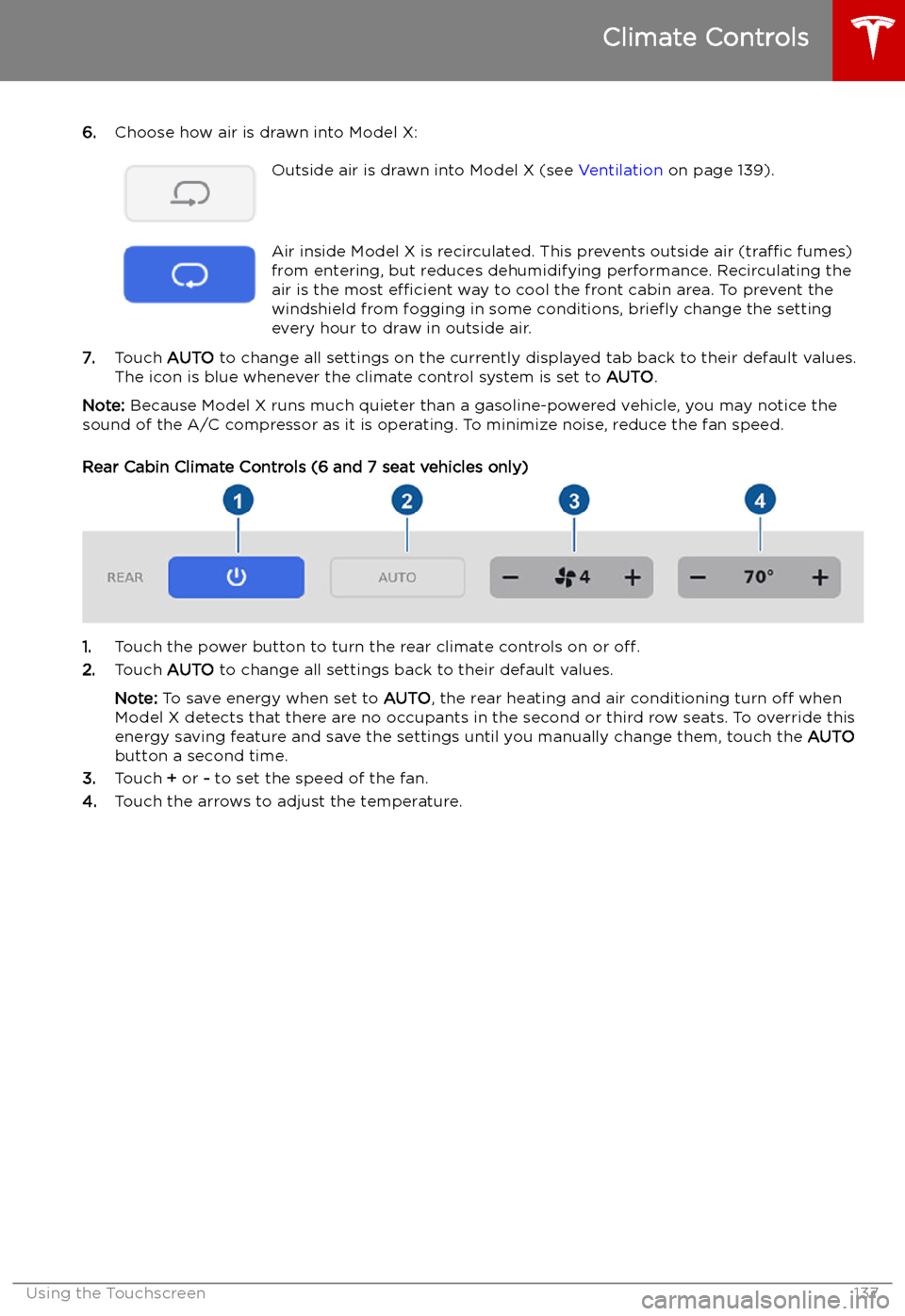
6.Choose how air is drawn into Model X:Outside air is drawn into Model X (see Ventilation on page 139).Air inside Model X is recirculated. This prevents outside air (traffic fumes)
from entering, but reduces dehumidifying performance. Recirculating the
air is the most efficient way to cool the front cabin area. To prevent the
windshield from fogging in some conditions, brie
Page 143 of 224
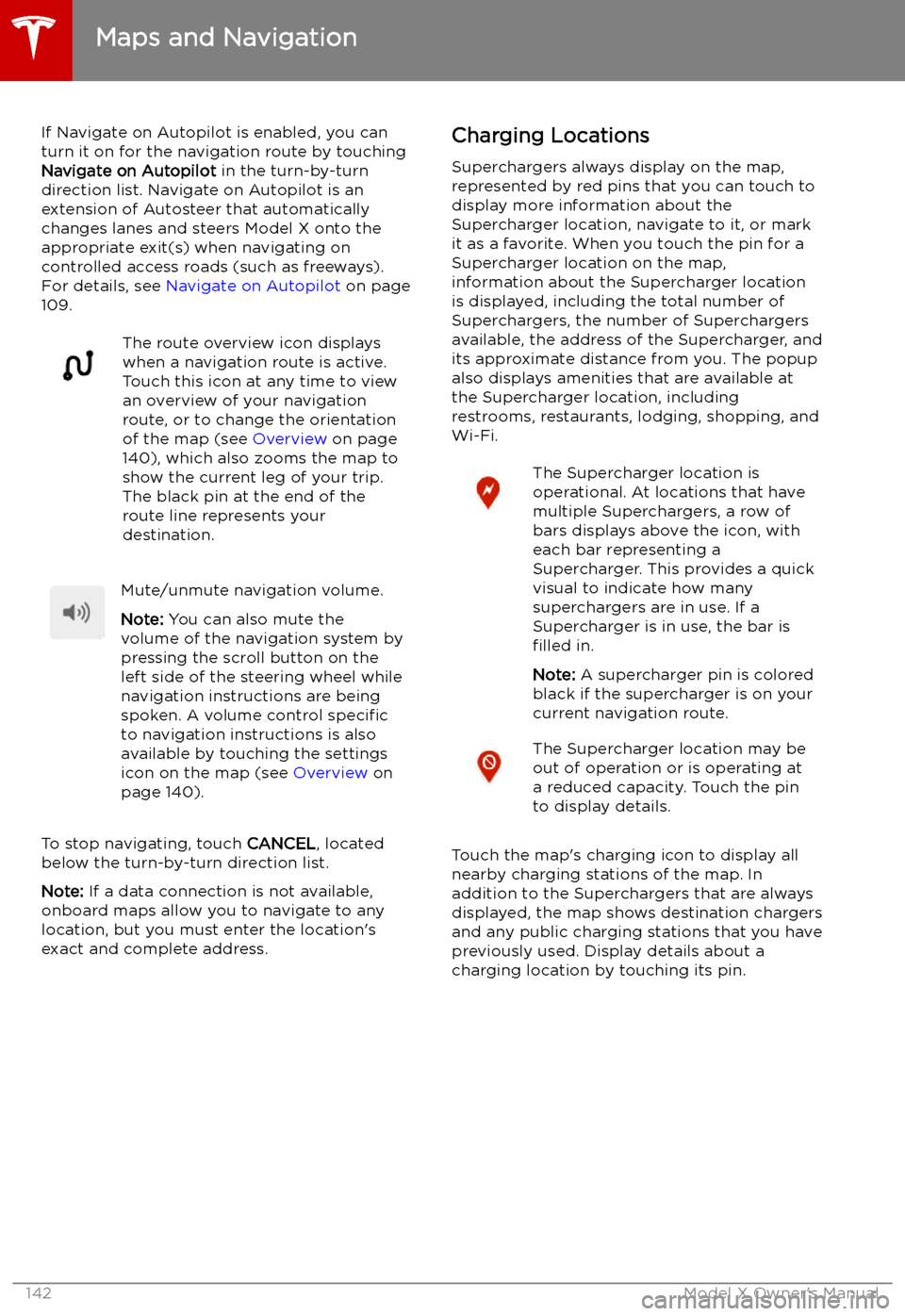
If Navigate on Autopilot is enabled, you canturn it on for the navigation route by touchingNavigate on Autopilot in the turn-by-turn
direction list. Navigate on Autopilot is an
extension of Autosteer that automatically
changes lanes and steers Model X onto the appropriate exit(s) when navigating on
controlled access roads (such as freeways).
For details, see Navigate on Autopilot on page
109.The route overview icon displays
when a navigation route is active.
Touch this icon at any time to view
an overview of your navigation
route, or to change the orientation
of the map (see Overview on page
140), which also zooms the map to
show the current leg of your trip.
The black pin at the end of the
route line represents your
destination.Mute/unmute navigation volume.
Note: You can also mute the
volume of the navigation system by
pressing the scroll button on the
left side of the steering wheel while
navigation instructions are being
spoken. A volume control specific
to navigation instructions is also
available by touching the settings
icon on the map (see Overview on
page 140).
To stop navigating, touch CANCEL, located
below the turn-by-turn direction list.
Note: If a data connection is not available,
onboard maps allow you to navigate to any location, but you must enter the location
Page 144 of 224
The location is equipped with a
Tesla Wall Connector. Touch to
display more information such as
usage restrictions and available
charge current. The charging list
also displays your proximity to
these charging stations.
Note: When the map is zoomed out
and more than one Tesla Wall
Connector is available in an area,
the pin is round and displays the
number of stations. Touch the pin
to zoom in. Then you can touch an
individual pins for detail about the
charging location.
Predicting Energy Usage
When navigating to a destination, Model X
helps you anticipate your charging needs by
calculating the amount of energy that remains
when you reach your destination. The
calculation is an estimate based on driving
style (predicted speed, etc.) and
environmental factors (elevation changes,
temperature, etc.). When navigating, the map
displays this calculation at the bottom of the
expanded turn-by-turn direction list (see
Navigating on page 141). When the turn-by-
turn direction list is compressed, touch the top of the list to expand it.
Throughout your route, Model X monitors
energy usage and updates the calculation. A
popup warning displays at the bottom of the turn-by-turn direction list in these situations:
Page 147 of 224

DAB Radio ServicesIf Model X is equipped with the
optional sound package, you can
select DAB radio from the Radio
source of Media Player. Select a
DAB radio station by browsing the
list of stations available in your
area, or touch the next or previous
buttons.
Internet Radio and Music Streaming
Services
If equipped with premium connectivity,
internet radio and music streaming services are available over a data connection. To listen,
touch the Media Player icon and choose the
streaming service you want to listen to.
Tesla may provide account credentials for
some internet radio and music streaming
services. If you would like to use your own
account, scroll to the bottom of the streaming
service window, touch Sign In, and enter your
account information.
Browse through the available categories
and/or stations, then touch what you want to
play. When browsing through a large category such as genres, you may need to enlarge the
window by dragging upward. When you
choose an option that displays multiple results
on a new window, touch the BACK button at
the top of the window to return to the main browse page.
You can also use voice commands (available
when speaking the English language) to play a
specific song, artist, or album from an Internet
radio service (see Using Voice Commands on
page 55).
When listening to some internet radio or
music streaming services, options available on Miniplayer may vary depending on what you
are listening to:
Page 150 of 224

Connecting to a Paired Phone
Model X automatically connects with the last
phone to which it was connected, provided it
is within operating range and has Bluetooth turned on. If the last phone is not within range,
it attempts to connect with the next phone
that it has been paired with.
To connect to a different phone, touch the
Bluetooth icon on the top of the touchscreen.
The Bluetooth window displays a list of paired
phones. Choose the phone you want to connect to, then touch Connect. If the phone
you want to connect to is not listed, you must
pair the phone. See Pairing a Bluetooth Phone
on page 148.
When connected, the Model X touchscreen displays the Bluetooth symbol next to thephone name to show that the connection is
active.
Using the Phone App
When your phone is connected to Model X
using Bluetooth, and you have allowed access to your phone
Page 151 of 224

Air Suspension
Note: When Model X starts, you may hear the
sound of the compressor as the air suspension system
Page 152 of 224

example, the suspension does not lower if a
door is open.
Note: Your chosen Suspension Lowering and
Adaptive Suspension Damping settings are
saved to your driver profile (see Driver Profiles
on page 50).
Auto-Raising Suspension Auto-raising suspension saves you from
manually having to raise the suspension every
time you arrive at a frequently-used location
where you have previously raised the
suspension. Whenever you raise the
suspension to HIGH or VERY HIGH , Model X
saves the location. When you return to the
saved location, Model X raises the suspension and the instrument panel displays this
message:
Note: When returning to a saved location and
driving faster than the High and Very High
suspension settings allow, the suspension
does not raise until Model X slows down.
Note: After leaving a saved location, the
suspension may not lower until you are driving
faster than the speed threshold at which the
suspension lowers.
Note: If Model X reaches a saved location and
the existing suspension setting is already
higher than the level that has been saved for
that location, the ride height is not adjusted.
To remove an auto-raising location
If you do not want the suspension to auto- raise at a saved location, touch the X in the
auto-raising location status message that
displays at a saved location. Doing so removes
the auto-raise location and the suspension no
longer raises automatically when you arrive at
the location.
Note: Manually lowering the suspension to
STANDARD , LOW , or VERY LOW while at a
saved location also removes the auto-raising
location.
Jack Mode
Before jacking or lifting, set the suspension to
Jack mode to prevent the self-leveling that
occurs even when Model X is powered off.
Press the brake pedal, then touch Controls >
Suspension > Jack .
To deactivate, touch Jack again.
Note: Jack mode automatically cancels when
you drive over 7 km/h.
Note: Model X also sets Jack mode
automatically if it detects that the vehicle
cannot lower to its target height, or if it
detects that an object is supporting the
vehicle